Show original
Try the app

超ルッキズム診断
Enjoyed this article?
Support superlookism
Share
AI translation
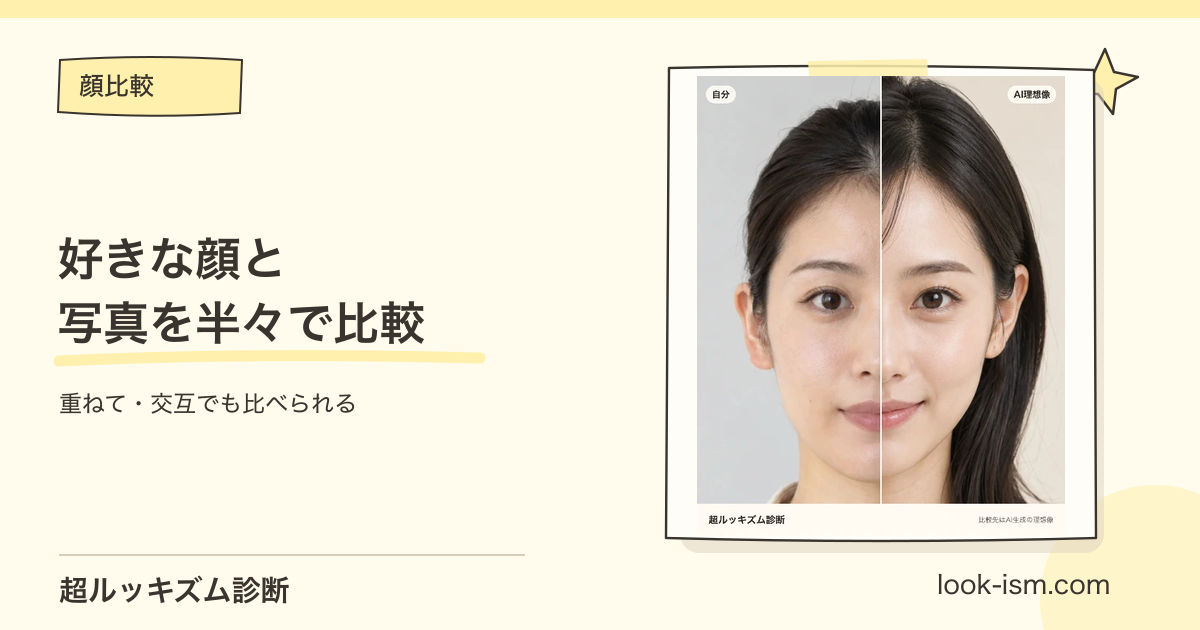
Compare with your ideal face or a photo of yourself taken previously. We introduce examples of half-and-half, overlay, and alternating display methods, along with procedures for photo alignment and saving.
Try the app
超ルッキズム診断
Enjoyed this article?
Support superlookism
When you want to compare your ideal face with your own photo, or check the difference before and after makeup. When viewing just 2 images separately, it can be difficult to track changes in the eyes and facial contours.
With the Super Lookism Diagnosis, you can align the positions of 2 facial photos and compare them using "half," "side-by-side/overlay," and "alternating" modes. This article is a usage guide provided by the operators. It works in your smartphone browser, and no registration or app installation is required. Face comparison is free to try.
First, select your own photo, then select the photo to compare. If you don't have a photo of another person ready, you can also choose from 4 preset people.
If this is your first time, it's fine to keep the alignment reference as "eyes." The face is detected and the size, tilt, and position are aligned. If it looks misaligned, you can drag your own photo to correct it.
In "half" mode, the 2 images are displayed split left and right. By moving the slider below the image, you can also check the hidden nose and mouth area. You can also change which side your face appears on with "swap left and right."
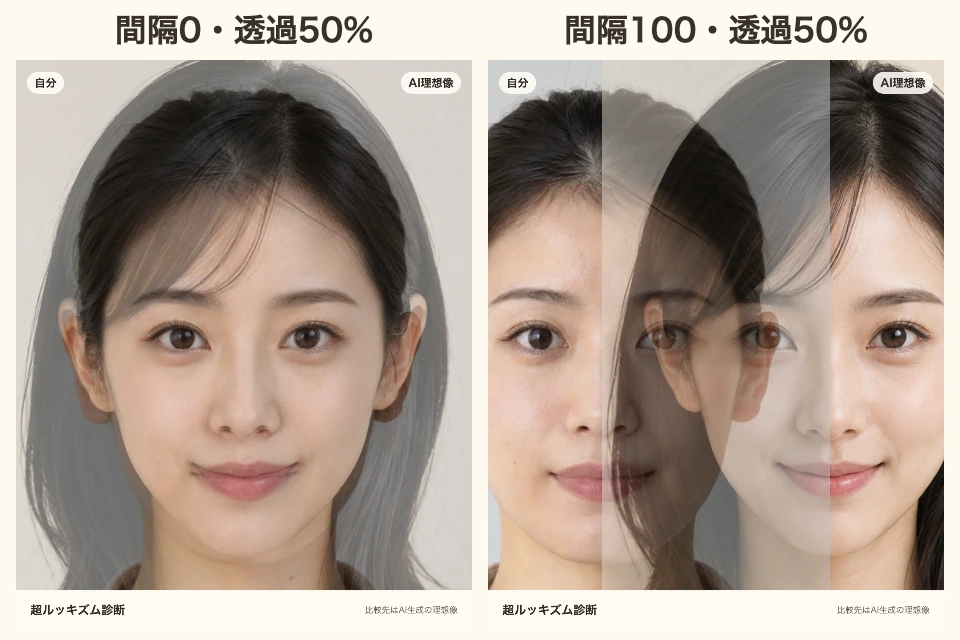 This example uses the same 2 images, compared at 50% transparency and 120% display size. The left shows the overlaid state with 0 spacing, and the right shows the side-by-side state with 100 spacing.
Select "side-by-side/overlay" and narrow the spacing to overlap the 2 images. In areas where the contour or eyebrow lines appear doubled, you can confirm differences in shape and position. If it's hard to see, you can change the transparency or widen the spacing to display them side-by-side.
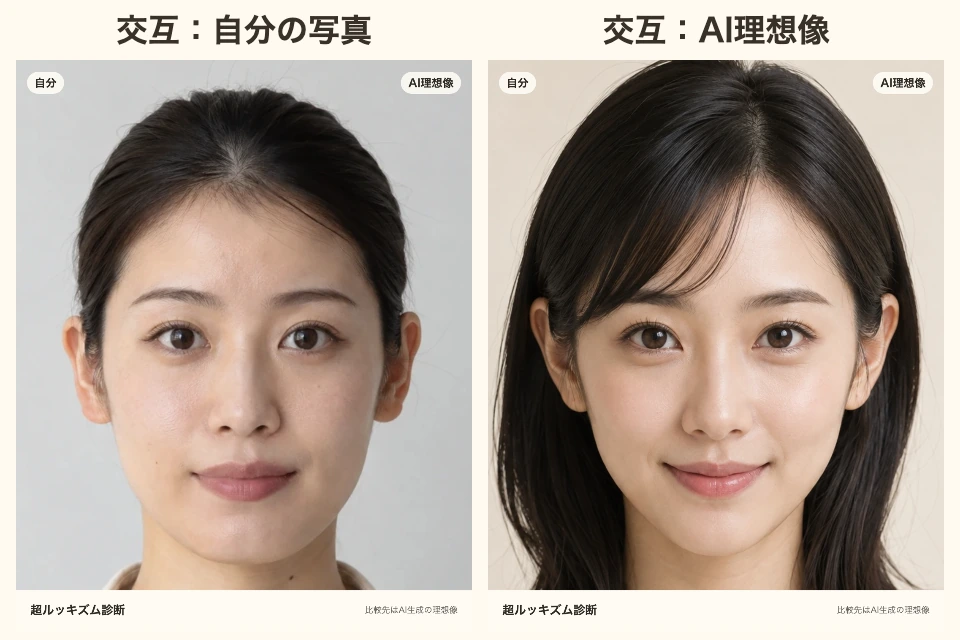 "Alternating" is a display that switches between photos one at a time in the same position. The image above shows the two states arranged side-by-side as a still image. On the actual screen, you can adjust the switching time.
You can use this when you want to see the entire face, such as the mouth area before and after makeup, or differences around the face with and without bangs.
Once the position is aligned, check "lock position" so it won't shift when you touch the screen. The completed state can be saved as an image with "save as PNG." With "share via URL," you can share a dedicated page valid for 7 days.
Photos where the eyes, nose, and mouth are visible and the face is close to front-facing are suitable. If you're looking at your own changes, try to align the shooting distance, camera height, and lighting as much as possible. The appearance of the nose and contours changes between close selfies and distant photos taken by others.
In addition to comparing with your ideal face, you can also use it to compare before and after makeup, with and without bangs, and changes or downtime progression after cosmetic procedures or beauty treatments. Do not use progress photo comparisons for medical judgment; consult with your treatment provider about any symptoms you're concerned about.
The people in the examples are AI-generated test images. The comparison screen is output from the actual face comparison feature.
理想の顔と自分の写真を比べたいときや、メイク前後の違いを確認したいとき。2枚を別々に見るだけでは、目元や輪郭の変化を追いにくいことがあります。
超ルッキズム診断では、顔写真2枚の位置を揃えて「半分」「並べる・重ねる」「交互」で比較できます。この記事は運営による使い方紹介です。スマホのブラウザで使え、登録やアプリのインストールは不要。顔比較は無料で試せます。
まず自分の写真を選び、比較する写真を選びます。相手の写真を用意していない場合は、4つの人物プリセットからも選べます。
初めてなら、位置合わせの基準は「目」のままで大丈夫です。顔を検出して、大きさ・傾き・位置を揃えます。ずれて見えたら自分の写真をドラッグして直せます。
「半分」では、2枚を左右に分けて表示します。画像下のスライダーで境目を動かすと、隠れていた鼻や口元も確認できます。「左右を入れ替え」で自分の顔を出す側も変更できます。
この作例は同じ2枚を使い、透過度50%・表示サイズ120%で比較しています。左は間隔0で重ねた状態、右は間隔100で横に並べた状態です。
「並べる・重ねる」を選び、間隔を狭くすると2枚が重なります。輪郭や眉の線が二重に見える部分で、形や位置の違いを確認できます。見づらければ透過度を変えたり、間隔を広げて並べたりできます。
「交互」は、同じ位置で写真を1枚ずつ切り替える表示です。上の画像は、その2つの状態を並べた静止画。実際の画面では切り替え時間を調整できます。
メイク前後の口元や、前髪のあり・なしによる顔周りの違いなど、顔全体を見たいときに使えます。
位置が合ったら「位置をロック」にチェックすると、画面に触れてもずれません。完成した状態は「PNGを保存」で画像にできます。「URLでシェア」では、7日間有効の専用ページを共有できます。
目・鼻・口が見え、顔が正面に近い写真が向いています。自分の変化を見るなら、撮る距離、カメラの高さ、光をできるだけ揃えてください。近い自撮りと離れた他撮りでは、鼻や輪郭の写り方も変わります。
理想の顔との比較のほか、メイク前後、前髪のあり・なし、整形や美容医療の後の変化やダウンタイムの経過を見比べる用途にも使えます。経過写真の比較は医療上の判断には使わず、気になる症状は施術先へ相談してください。
作例の人物はAI生成のテスト画像です。比較画面は実際の顔比較機能で出力しています。
