Show original
Try the app

超ルッキズム診断
Enjoyed this article?
Support superlookism
Share
AI translation
This is a free website where you can compare makeup colors and shapes using your own photos. We introduce examples of rose and coral lips, pink and peach blush, straight brows and arched brows, along with how to use alignment, brush editing, and image saving features. No registration or app installation is required.
Try the app
超ルッキズム診断
Enjoyed this article?
Support superlookism
Should I go with a pink-toned or orange-toned lip? What would it look like if I placed the blush a bit more toward the outer edge? Before actually reapplying makeup, I created a makeup simulation where I can compare different options using my own photo.
"Ultra Lookism Diagnosis" is a free makeup simulation website that works in your smartphone browser. With just one photo, you can try different lip colors, blush colors, eye makeup colors, and eyebrow shapes. No registration or app installation required.
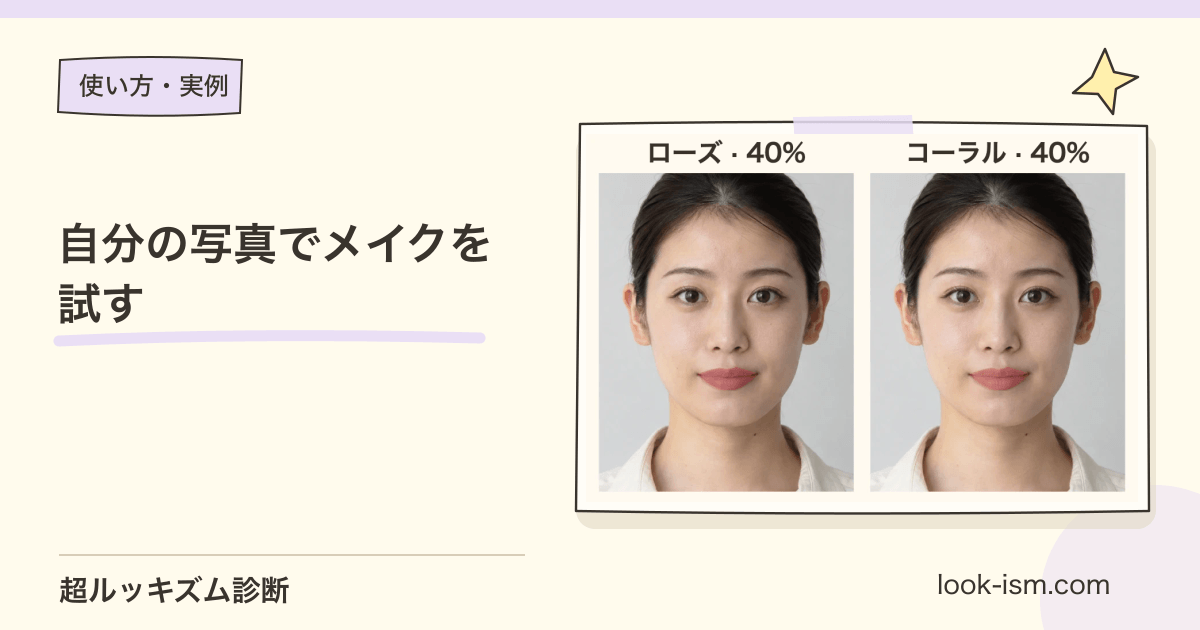
First, here's an example where only the lip color was changed in the same photo. Left is rose, right is coral. Both are set to 40% intensity, with eyebrows, blush, and eye makeup unchanged.
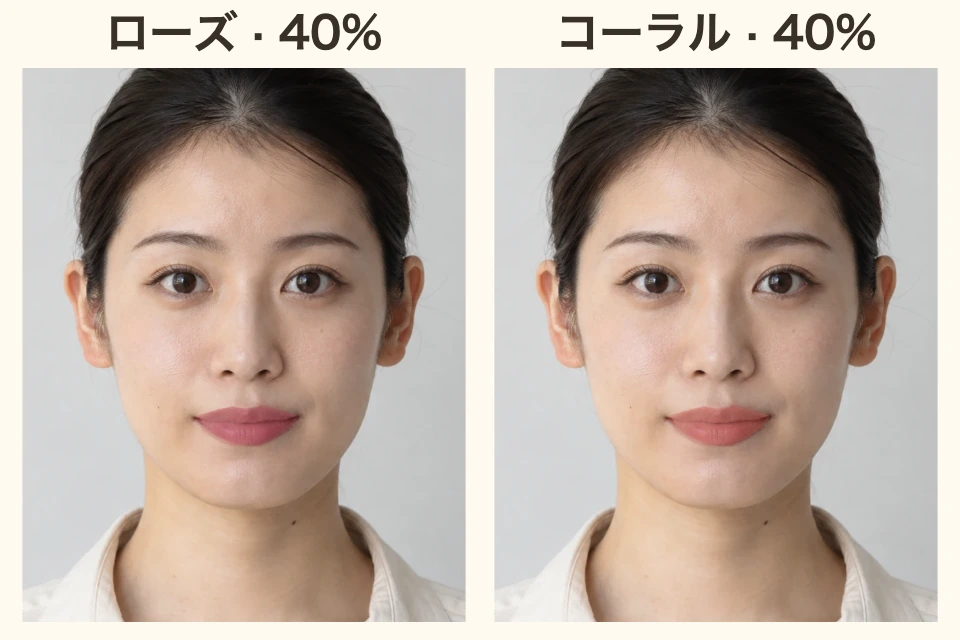 In this photo, the rose appears as a deep pink, while the coral looks more orange-toned. Since the color is layered while preserving the bright areas and fine lines of the lips, you can see the difference around the mouth better than with just a color swatch.
With your own photo, try deciding the intensity first, then switching only the color. Since comparing becomes difficult when changing both color and intensity at the same time, it's convenient to save 2 colors with the same settings like 40% initially.
Next, only the blush was changed. Left is pink, right is peach. Intensity is 35%, height is 0. Lips and eyebrows remain as original.
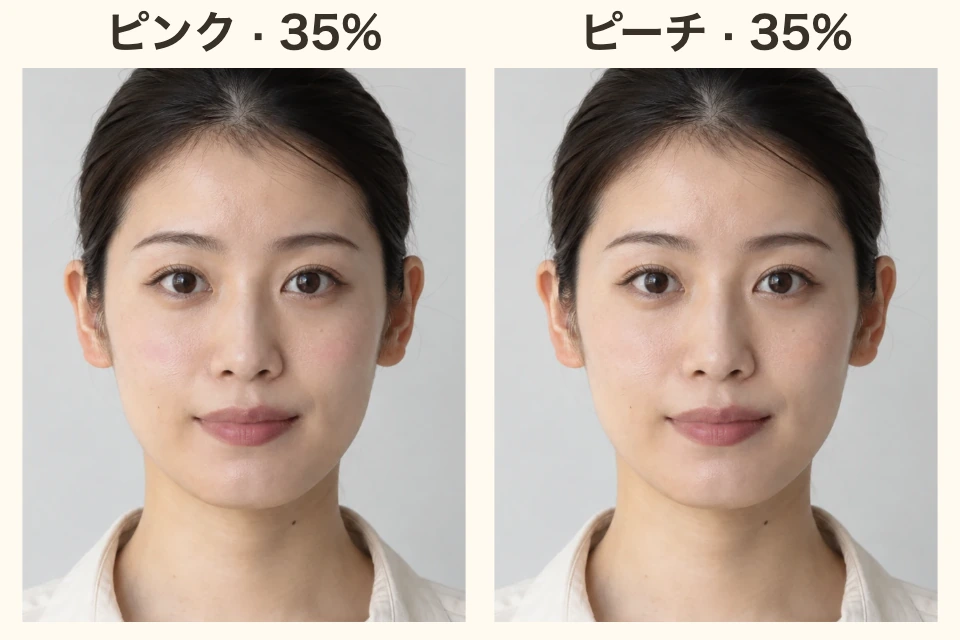 The pink adds a reddish tone to the cheeks, while the peach adds an orange-toned color. The default position is from the outer edge of the pupil toward the cheekbone. With "Adjust Position," you can move the cheek point to try placements that are more center-oriented or outer-oriented. The left and right are basically linked, but you can also choose to adjust only one side.
When changing blush placement, fixing the color makes it easier to understand which change you preferred. When changing color, fixing the position has the same effect.
In addition to lips and blush, you can also change the eyebrow shape, color, intensity, thickness, length, and height. Left shows straight brows, right shows arched brows. This example compares them in brown at 100% intensity.
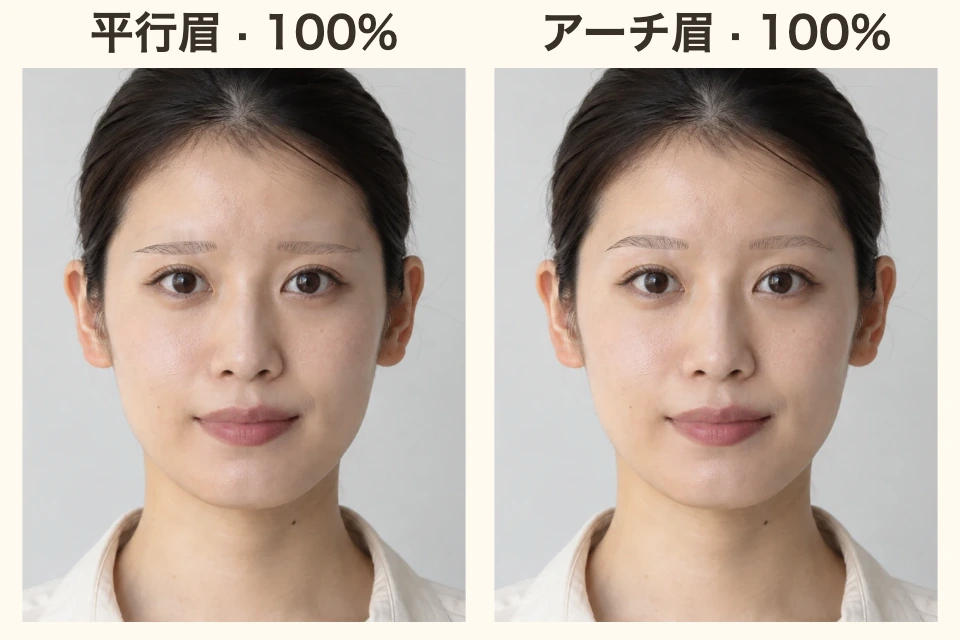 Right after opening a photo, the original eyebrows remain. When you select a shape or color, the original brows are hidden and replaced with your chosen brows. If they appear misaligned, align the 3 points to your original brow start, arch, and tail.
If you want to focus on trying eyebrows, please also refer to 平行眉・アーチ眉と濃さを比較した記事.
Beyond layering color at fixed positions, you can paint with your finger or mouse from "Draw with Brush." You can use the color of the selected makeup, or change just the brush to a different color.
You can start with brush settings tailored to each feature—thinner for eyebrows, wider for blush. When you want to add a little color to the eyes or extend just the eyebrow tail, zoom in and paint. You can adjust the thickness and intensity yourself.
If you paint too much, use "Undo" or the eraser to correct. The eraser only removes the hand-drawn parts. The content you paint with the brush will be included in the saved image.
This virtual makeup works by layering color and eyebrows onto a photo. It cannot reproduce the exact color payoff or shine of specific products. Use it to try color options and placements.
In photos where bangs or dark shadows fall over the eyebrows, the traces of the hidden original brows may become noticeable. Use a photo where the eyebrows are clearly visible, and if needed, adjust the position or the range being hidden.
The people shown in the posted images are AI-generated test photos. Changes to lips, blush, and eyebrows were made using the same image processing as the publicly available makeup simulator.
リップをピンク系にするか、オレンジ系にするか。チークをもう少し外側に入れたらどう見えるか。実際に塗り直す前に、自分の写真で比べられるメイクシミュレーションを作りました。
「超ルッキズム診断」は、スマホのブラウザで使える無料のメイクシミュレーションサイトです。写真1枚でリップ・チーク・目元の色、眉の形を試せます。登録もアプリのインストールも不要です。
まずは、同じ写真のリップだけを変えた作例です。左はローズ、右はコーラル。どちらも濃さ40%に揃え、眉・チーク・目元は変更していません。
この写真では、ローズは深めのピンク、コーラルはオレンジ寄りに見えます。唇の明るい部分や細かい線を残して色を重ねているので、色見本だけよりも口元での違いを確認できます。
自分の写真でも、まず濃さを決めてから色だけ切り替えてみてください。色と濃さを同時に変えると比べにくいので、最初は40%など同じ設定で2色を保存しておくと便利です。
次はチークだけを変えました。左はピンク、右はピーチ。濃さは35%、高さは0。リップや眉は元のままです。
ピンクは赤み、ピーチはオレンジ寄りの色が頬にうっすら重なります。初期位置は黒目の外側から頬骨寄り。「位置を合わせる」で頬の点を動かせるので、中央寄り・外側寄りの配置も試せます。左右は基本的に連動し、片側だけの調整も選べます。
チークの位置を変えるときは色を固定、色を変えるときは位置を固定すると、どの変更が好みだったか分かりやすくなります。
リップやチークに加えて、眉の形・色・濃さ・太さ・長さ・高さも変更できます。左は平行眉、右はアーチ眉。ブラウン・濃さ100%で比べた作例です。
写真を開いた直後は、元の眉のままです。形や色を選ぶと、元眉を隠して選んだ眉に置き換えます。ずれて見える場合は、元の眉頭・眉山・眉尻に3つの点を合わせます。
眉を中心に試したい方は、平行眉・アーチ眉と濃さを比較した記事も参考にしてください。
決まった位置に色を重ねるだけでなく、「ブラシで描く」から指やマウスでペイントできます。選んでいるメイクの色を使い、ブラシ側だけ別の色に変更することもできます。
眉なら細め、チークなら広めなど、選んだパーツに合わせたブラシ設定から始められます。目元に少し色を足したいとき、眉尻だけ伸ばしたいときは、部分を拡大して描いてみてください。太さや濃さは自分で調整できます。
描きすぎたら「戻す」か消しゴムで修正。消しゴムで消えるのは手描きした部分だけです。ブラシで描いた内容も保存画像に入ります。
このバーチャルメイクは写真に色や眉を重ねる方式です。特定の商品の発色やツヤまでは再現できません。色の候補や配置を試す用途で使ってください。
眉に前髪や濃い影がかかっている写真では、元眉を隠した跡が目立つことがあります。眉がよく見える写真を使い、必要なら位置や隠す範囲を調整します。
掲載した人物はAI生成のテスト写真です。リップ・チーク・眉の変更は、公開中のメイクシミュレーターと同じ画像処理で行いました。
