Show original
Enjoyed this article?
Support Lily
Share

AI translation
zenn.dev In previous articles, I've introduced mechanisms for auto-generating skills and context auditing. These truly provide value when run automatically at fixed times each night. In my environment, I currently have 20 launchd jobs running (skill generation, context auditing, morning briefing generation, Vault…
Enjoyed this article?
Support Lily
In previous articles, I've introduced スキルを自動生成する仕組み and コンテキスト監査. These gain value precisely because they run automatically at fixed times every night. In my environment, I currently have 20 launchd jobs running (skill generation, context auditing, morning brief generation, Vault ingestion, etc.).
However, setting up scheduled execution on macOS has far more pitfalls than I imagined. This article covers 5 traps I actually hit and fixed, with verified workarounds.
I registered it with crontab -e, but it never runs once. This is the first trap. On modern macOS (Sequoia and later), the cron daemon is essentially not running, and jobs are silently skipped. You don't even get an error.
Check if it's alive like this.
log show --predicate 'process == "cron"' --last 7dIf this returns 0 results, cron is not running. Migrate straightforwardly to launchd. A launchd job looks like this plist.
<key>Label</key><string>com.you.skill-harvest</string>
<key>ProgramArguments</key>
<array>
  <string>/bin/bash</string>
  <string>/Users/you/.claude/scripts/skill-harvest.sh</string>
</array>
<key>StandardOutPath</key><string>/Users/you/.claude/logs/skill-harvest.log</string>
<key>StandardErrorPath</key><string>/Users/you/.claude/logs/skill-harvest.log</string>
Loading and immediate execution work like this.
launchctl bootstrap gui/$(id -u) ~/Library/LaunchAgents/com.you.skill-harvest.plist
launchctl kickstart gui/$(id -u)/com.you.skill-harvest   # 強制実行で動作確認
Key Points
launchctl list / launchctl load are legacy APIs. Modern ones are launchctl print / bootstrap / kickstart. Mixing old and new causes confusion.
Trying to write "every 5 minutes" in cron style gets you stuck. StartCalendarInterval specifies specific times, not periodic syntax like */5.
Also, these subtle but effective traps:
This is where I got stuck the hardest. Claude Code hooks (PostToolUse, etc.) fail every time with /bin/sh: node: command not found. Yet node works fine in the terminal.
Root cause: Child processes spawned by apps launched from the GUI run /bin/sh -c without reading the login shell profile (.zshrc), having only the minimal PATH (/usr/bin:/bin:/usr/sbin:/sbin). Node in nvm or Homebrew is invisible. launchd jobs fail for the same reason.
The fix is to add env.PATH at the top level of ~/.claude/settings.json and have child processes inherit it.
"env": {
  "PATH": "/opt/homebrew/bin:/opt/homebrew/sbin:/usr/local/bin:/usr/bin:/bin:/usr/sbin:/sbin:/Users/you/.local/bin"
}
The key point is to always include /opt/homebrew/bin. If you hardcode only nvm's version-specific path (.../node/v24.x/bin), it becomes stale the moment you update Node to a major version and you get "not found" again. Including /opt/homebrew/bin/node as a fallback keeps it from breaking.
Reproduction and verification work like this.
# 旧最小PATHで再現(not found が出る)
env -i HOME="$HOME" /bin/sh -c 'PATH="/usr/bin:/bin"; node --version'
# 新PATHで解決(バージョンが出る)
env -i HOME="$HOME" /bin/sh -c 'PATH="/opt/homebrew/bin:/usr/bin:/bin"; node --version'I wrap scripts with timeout 60 some-command, but get timeout: command not found. macOS doesn't come standard with GNU coreutils' timeout. Many articles and rules are written assuming timeout, so copy-pasting fails silently.
brew install coreutils # gtimeout が入るMaking your script handle both improves portability.
TIMEOUT_CMD="timeout 60"
command -v gtimeout >/dev/null && TIMEOUT_CMD="gtimeout 60"
$TIMEOUT_CMD some-command
Incidentally, bash version issues are the same root cause. macOS's standard bash is 3.2, lacking 5.x features like $EPOCHREALTIME (microsecond-precision timestamps). For measurement scripts, set the shebang to #!/opt/homebrew/bin/bash to explicitly use version 5.
The last one is the most insidious. A certain job with KeepAlive crashed in an infinite loop, repeating approximately 15,000 launches over 6 days. No process ever started, no logs remained. Running launchctl print gui/$(id -u)/<label> showed last exit code = 78: EX_CONFIG, with runs incrementing every few seconds.
78 is not an app exit but a code synthesized by launchd meaning "failed to initialize the service" = failure at the spawn stage. The fact that logs never grew (mtime frozen) confirms this. If manually running the script starts normally, the program itself is healthy and only dies under launchd.
Diffing healthy jobs and plists against the broken one revealed 3 effective causes.
The repair procedure order matters.
# 1. ループを止める
launchctl bootout gui/$(id -u)/<label>
# 2. ポートを掴んだ孤児プロセスを「所有者を確認してから」kill
lsof -nP -iTCP:<port> -sTCP:LISTEN
# 3. plistを直して再投入
launchctl bootstrap gui/$(id -u) <plist>
# 4. 検証
launchctl print gui/$(id -u)/<label> | grep -E 'state =|runs =|last exit'
⚠️ Warning
KeepAlive=true does not fix spawn failures. Without ThrottleInterval (around 30 seconds), the infinite loop at few-second intervals causes runs to accumulate to tens of thousands.
One more landmine. When investigating plists, getting the arguments to plutil -extract ... -o <file> wrong overwrites and corrupts the original plist (I actually had one job's plist become a 76-byte JSON fragment). Always pipe plutil investigation to -o - (stdout) or a separate file.
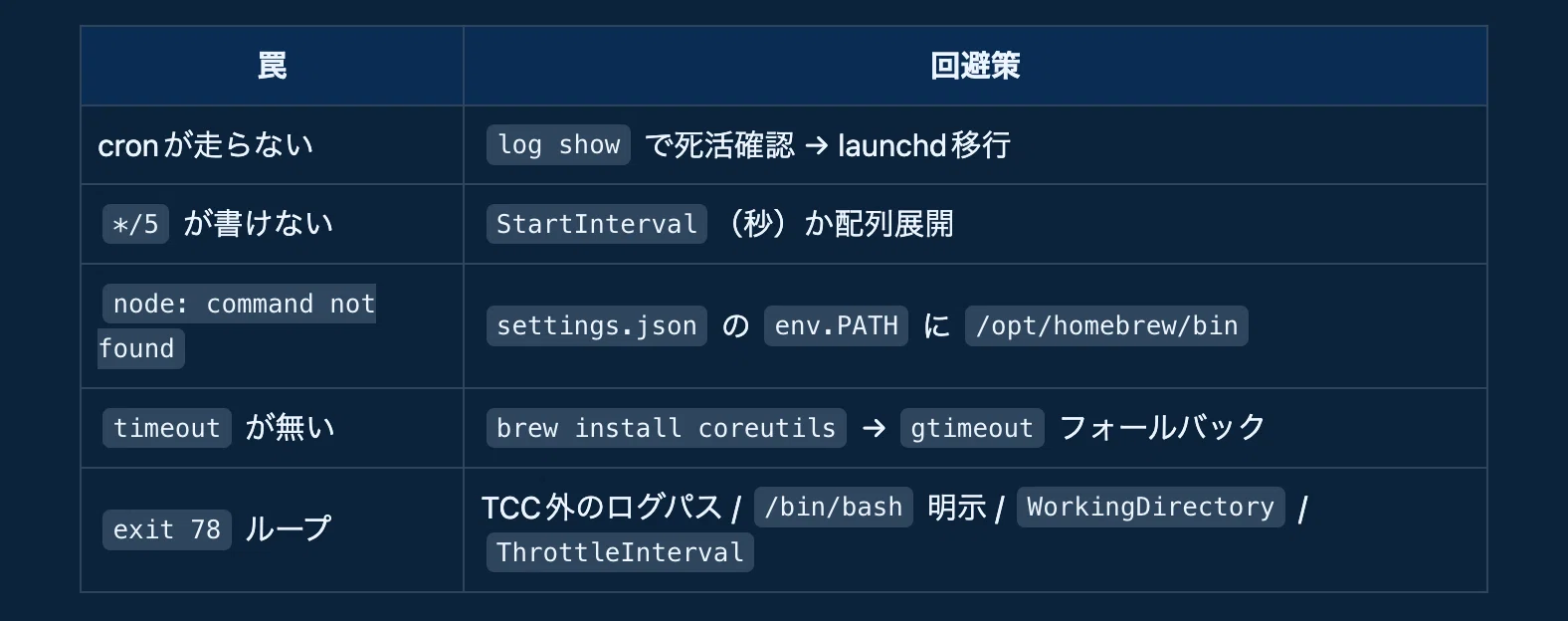 Automation isn't "done once you set it up"—it's only complete when you include health checks. Getting in the habit of regularly checking launchctl print to see if log mtimes are advancing as expected helps you catch jobs dying silently early.
Over these 3 articles, skills have grown, context has lightened, and automation runs 24/7. Next, I plan to write about the mechanism to summarize all this into a morning brief.
Lily (@bokuwalily) ― Independent developer. Building automation infrastructure with Claude Code while mass-producing iOS apps and web services
◼︎ Apps I've made are summarized at **ポートフォリオ**📱
◼︎ New releases and development behind-the-scenes on X **@bokuwalily**🐦
◼︎ OSS: **github.com/bokuwalily**🐙
Your ❤️ and shares are my motivation!
これまでの記事で、スキルを自動生成する仕組みやコンテキスト監査を紹介してきました。これらは毎晩決まった時刻に自動で走らせてこそ価値が出ます。僕の環境では今 launchd ジョブが 20本動いています(スキル生成、コンテキスト監査、毎朝のブリーフ生成、Vault取り込み等)。
ただ、macOSで定期実行を組むのは想像以上に罠が多い。この記事は、実際に踏んで直した5つの罠と、検証済みの回避策です。
crontab -e で登録したのに一度も走らない。これが最初の罠です。modern macOS(Sequoia以降)では cron daemon が実質動いておらず、ジョブが無言でスキップされます。エラーすら出ません。
死活確認はこう。
log show --predicate 'process == "cron"' --last 7dこれが 0件なら cron は動いていません。素直に launchd へ移行します。launchd のジョブはこういう plist になります。
<key>Label</key><string>com.you.skill-harvest</string>
<key>ProgramArguments</key>
<array>
  <string>/bin/bash</string>
  <string>/Users/you/.claude/scripts/skill-harvest.sh</string>
</array>
<key>StandardOutPath</key><string>/Users/you/.claude/logs/skill-harvest.log</string>
<key>StandardErrorPath</key><string>/Users/you/.claude/logs/skill-harvest.log</string>
ロード・即時実行はこう。
launchctl bootstrap gui/$(id -u) ~/Library/LaunchAgents/com.you.skill-harvest.plist
launchctl kickstart gui/$(id -u)/com.you.skill-harvest   # 強制実行で動作確認
ポイント
launchctl list / launchctl load は legacy API です。modernは launchctl print / bootstrap / kickstart。新旧を混ぜると混乱します。
「5分おき」をcron感覚で書こうとすると詰まります。StartCalendarInterval は特定時刻の指定で、*/5 のような周期構文は使えません。
あと細かいですが効く罠:
ここが一番ハマりました。Claude Codeのフック(PostToolUse 等)が毎回 /bin/sh: node: command not found で失敗する。ターミナルでは普通に node が通るのに、です。
原因:GUIから起動したアプリがspawnする子プロセスの /bin/sh -c は、ログインシェルのプロファイル(.zshrc)を読まず、最小PATH(/usr/bin:/bin:/usr/sbin:/sbin)しか持ちません。nvmやHomebrewにある node が見えないのです。launchdジョブも同じ理由でコケます。
修正は ~/.claude/settings.json のトップレベルに env.PATH を足し、子プロセスに継承させること。
"env": {
  "PATH": "/opt/homebrew/bin:/opt/homebrew/sbin:/usr/local/bin:/usr/bin:/bin:/usr/sbin:/sbin:/Users/you/.local/bin"
}
ポイントは /opt/homebrew/bin を必ず含めること。nvmのバージョン付きパス(.../node/v24.x/bin)だけをハードコードすると、Nodeをメジャー更新した瞬間にstale化して再び not found になります。/opt/homebrew/bin/node をfallbackとして入れておけば壊れません。
再現と検証はこう。
# 旧最小PATHで再現(not found が出る)
env -i HOME="$HOME" /bin/sh -c 'PATH="/usr/bin:/bin"; node --version'
# 新PATHで解決(バージョンが出る)
env -i HOME="$HOME" /bin/sh -c 'PATH="/opt/homebrew/bin:/usr/bin:/bin"; node --version'スクリプトを timeout 60 some-command で囲っているのに timeout: command not found。macOSはGNU coreutilsの timeout を標準搭載していません。多くの記事やルールが timeout 前提で書かれているので、コピペすると不発になります。
brew install coreutils # gtimeout が入るスクリプト側は両対応にしておくと移植性が上がります。
TIMEOUT_CMD="timeout 60"
command -v gtimeout >/dev/null && TIMEOUT_CMD="gtimeout 60"
$TIMEOUT_CMD some-commandちなみにbashのバージョン問題も同根です。macOS標準のbashは3.2で、$EPOCHREALTIME(µs精度の時刻)など5系の機能がありません。計測系スクリプトを書くなら shebang を #!/opt/homebrew/bin/bash にして5系を明示します。
最後が一番厄介でした。あるジョブが KeepAlive で無限にクラッシュループし、6日間で約15,000回起動を繰り返していた実例があります。プロセスは一切立たず、ログも残らない。launchctl print gui/$(id -u)/<label> を見ると last exit code = 78: EX_CONFIG、runs が数秒おきに増え続けていました。
78はアプリのexitではなく、launchdが合成する「サービスを初期化できなかった」=spawn段階の失敗です。ログが一切成長していない(mtimeが凍結)のが裏付け。手動でスクリプトを叩くと正常起動するなら、プログラム自体は健全で、launchd配下でだけ死んでいます。
健常なジョブとplistを差分比較して、効いた原因が3つありました。
修復手順は順序が重要です。
# 1. ループを止める
launchctl bootout gui/$(id -u)/<label>
# 2. ポートを掴んだ孤児プロセスを「所有者を確認してから」kill
lsof -nP -iTCP:<port> -sTCP:LISTEN
# 3. plistを直して再投入
launchctl bootstrap gui/$(id -u) <plist>
# 4. 検証
launchctl print gui/$(id -u)/<label> | grep -E 'state =|runs =|last exit'
⚠️ 注意
KeepAlive=true は spawn失敗を直しません。ThrottleInterval(30秒程度)を入れないと、数秒間隔の無限ループで runs が数万に積み上がります。
最後にもう一つの地雷。plistを調べるとき plutil -extract ... -o <file> の引数を間違えると、元のplistを出力で上書き破壊します(実際にあるジョブのplistが76バイトのJSON断片になりました)。調査系の plutil は必ず -o -(stdout)か別ファイルに出すこと。
自動化は「組んだら終わり」ではなく、死活確認まで含めて初めて完成です。launchctl print でログのmtimeが想定どおり進んでいるか、定期的に見る習慣をつけると、無言で死んでいるジョブに早く気づけます。
ここまでの3記事で、スキルが育ち・コンテキストが軽く・自動化が24時間回る環境ができました。次はこれらを毎朝のブリーフとしてまとめる仕組みを書く予定です。
Lily(@bokuwalily)― 個人開発者。Claude Code で自動化基盤を組みながら、iOSアプリやWebサービスを量産しています
◼︎作ったアプリは **ポートフォリオ** にまとめています📱
◼︎新着・開発の裏側は X **@bokuwalily** で発信しています🐦
◼︎OSS: **github.com/bokuwalily**🐙
皆さんの ❤️ やシェアが励みになります!
