Show original
Try the app

napps エンタメありの永久無料ツール集
Enjoyed this article?
Support ntones (エヌトーンズ)
Share
Tue, Nov 3, 20:00 JST Tsukutta-chan live stream
Watch on YouTube(opens YouTube in a new tab)AI translation
Introduction to Image Combination Tool
Try the app
napps エンタメありの永久無料ツール集
Enjoyed this article?
Support ntones (エヌトーンズ)
 When You Want This
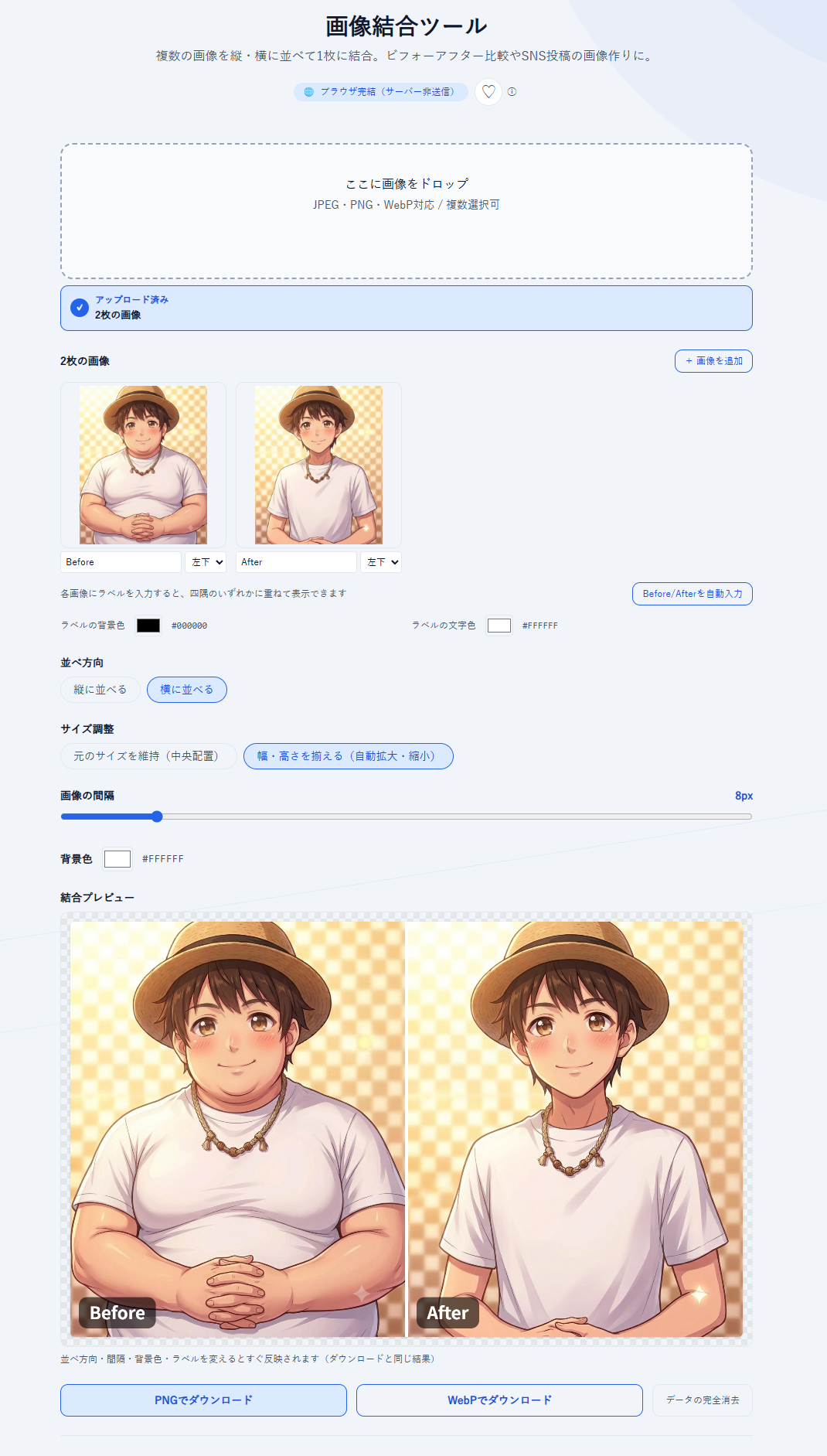
When you want to place before and after photos side by side on one image for easy comparison.
When you want to concatenate product photos or screenshots horizontally/vertically to create images for SNS posts.
When you want to neatly arrange images of different sizes by aligning their heights.
When you want to overlay labels (Before / After, etc.) on top of images to explain them.
With the "Image Merge Tool," you can upload two or more images and easily create a combined image.
It's also a good way to keep a record of your diet progress.
How to Use
\
こんなときに
ビフォーアフター写真を1枚に並べて比較しやすくしたいとき。
商品写真やスクリーンショットを横/縦に連結して、SNS投稿用の画像を作りたいとき。
サイズの違う画像でも、高さを揃えてきれいに並べたいとき。
ラベル(Before / After など)を画像の上に重ねて説明したいとき。
「画像結合ツール」では、2つ以上の画像をアップロードして簡単に連結画像を作成することができます。
ダイエットの記録として残すのも良いのではないでしょうか。
使いかた
1.画像をドロップ(または選択)します。複数枚まとめて追加できます。
2.サムネイルの矢印で順番を入れ替えます。必要ならラベルや「Before/Afterを自動入力」を使います。
3.並べ方向(初期は横並び)・サイズ調整(初期は幅・高さを揃える)・間隔・背景色を好みに合わせます。
4.画面上の結合プレビューで仕上がりを確認し、「PNGでダウンロード」または「WebPでダウンロード」を押します。
ポイント
・結合プレビューは設定変更ですぐ反映され、ダウンロード結果と同じ内容です。
・ログイン不要で無料でお使いいただけます。今後、有料化することはありません

