Show original
Try the app

napps エンタメありの永久無料ツール集
Enjoyed this article?
Support ntones (エヌトーンズ)
Share
AI translation
napps [Tabs] をリリース
Try the app
napps エンタメありの永久無料ツール集
Enjoyed this article?
Support ntones (エヌトーンズ)
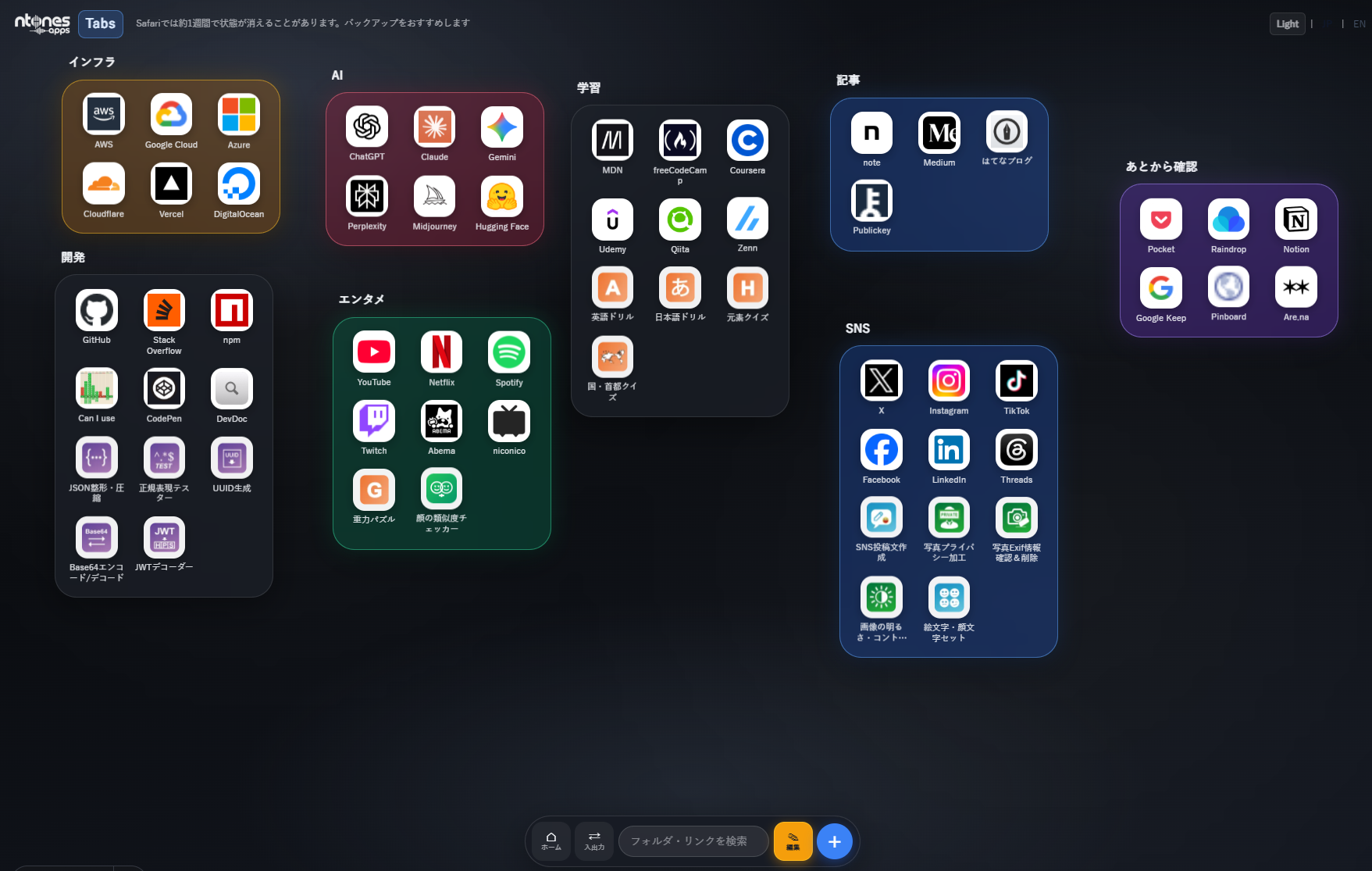
Just a bookmark.
Add your favorites from 100+ napps tools or
register external sites and organize them into groups.
You can freely arrange groups and change their colors.
Compatible with computers and smartphones.
When to use
Due to the nature of work, I often work with many tabs open, and they're all important so I can't close them.
Every time, I search and access the relevant site.
I have bookmarks registered, but I struggle to find what's where.
I want to improve my work efficiency even a little.
With [Tabs], frequently accessed sites and tools are organized and registered into groups. They're visually clear and immediately accessible.
How to use
[Add Group]
※ localStorage is used to maintain the screen state.
In Safari, data may disappear after one week, so once you've registered everything,
we recommend saving a backup from [Import/Export] at the bottom of the screen.
Key Points
・You can freely register any groups, napps tools, and external sites.
・You can arrange groups in any position to make them visually clear.
・Uses localStorage; no data is sent to servers.
・Once you create a screen, you can export it, open napps on another computer or smartphone, import it, and reproduce it.
・Especially in Safari, we recommend backing up.
・No login required・Free. We will not charge for it in the future.
単なるブックマークです。
napps 100+ツールのうちのお気に入りを追加したり
外部サイトを登録してグループ化できます。
グループをご自由に配置して色変えできます。
パソコン、スマホに対応しています。
こんなときに
仕事柄、多くのタブを開いた状態で作業していて、どれも重要でタブを閉じられない。
毎回、検索して該当するサイトにアクセスしている。
ブックマーク登録しているけど、何がどこにあるのか見つけるのに苦労している。
少しでも作業を効率化したい。
[Tabs]では、よくアクセスするサイト、ツールをグループ化して登録。視覚的に分かりやすく、即アクセスできます。
使いかた
1.HOME(index)にアクセスするとヘッダーに[Tabs]がありますので選択します。
2.初回は、お気に入りグループがありますが画面下部の[編集]を押して、グループ名を変更します。任意でグループのカラーを変更します。
3.[+ツール/ +外部サイト]を押すと、nappsツールの検索して登録。または、任意のサイト名とURLを登録します。
[グループ追加]
1.画面下の[+]を押すとグループ追加ができます。名前、カラーを選択してグループ作成します。
2.画面下の[編集]を押します。すべてのグループが編集モードになります。グループ名、グループカラー、nappsツールの追加、外部サイト追加などご自由にご登録いただけます
※画面の状態維持にはlocalstorageを利用しています。
Safariでは、1週間でデータが消えることがありますので、ひととおり登録できた時点で
画面下の[入出力]からバックアップ保存しておくことをおすすめします。
ポイント
・任意のグループ、nappsツール、外部サイトを自由に登録できる
・グループを任意の位置に配置して視覚的にわかりやすくできる
・localstorageを利用していて、サーバー送信は一切しません。
・画面を作成したらエクスポートして、別のパソコン、スマホでnappsを開き、インポートして再現できる。
・Safariでは、特にバックアップしておくことを推奨。
・ログイン不要・無料です。今後、有料化することはありません。

